Subscribe


Subscribe by Email. Enter address:

Search

Powered by Squarespace
Sponsors

Recommended
  • Fabricated: The New World of 3D Printing
    Fabricated: The New World of 3D Printing
    by Hod Lipson, Melba Kurman
  • Getting Started with MakerBot
    Getting Started with MakerBot
    by Bre Pettis, Anna Kaziunas France, Jay Shergill
  • Bend, Not Break
    Bend, Not Break
    Portfolio
  • Makers: The New Industrial Revolution
    Makers: The New Industrial Revolution
    by Chris Anderson
  • Makers
    Makers
    by Cory Doctorow
  • 3Dconnexion SpaceNavigator SE (Standard Edition) 3D Navigation Device USB ( 3DX-700028 )
    3Dconnexion SpaceNavigator SE (Standard Edition) 3D Navigation Device USB ( 3DX-700028 )
    3D Connexion
  • Printing in Plastic: Build Your Own 3D Printer (Technology in Action)
    Printing in Plastic: Build Your Own 3D Printer (Technology in Action)
    by James Floyd Kelly, Patrick Hood-Daniel
  • The Homebrew Industrial Revolution: A Low-Overhead Manifesto
    The Homebrew Industrial Revolution: A Low-Overhead Manifesto
    by Kevin A. Carson

Entries in sketchup (8)

Thursday
Nov222012

Using SketchUp for 3D Printing

SketchUp is a free 3D modeling tool that is quite often the very first exposure to 3D modeling for many people. But is it appropriate for producing 3D models for printing? 
 
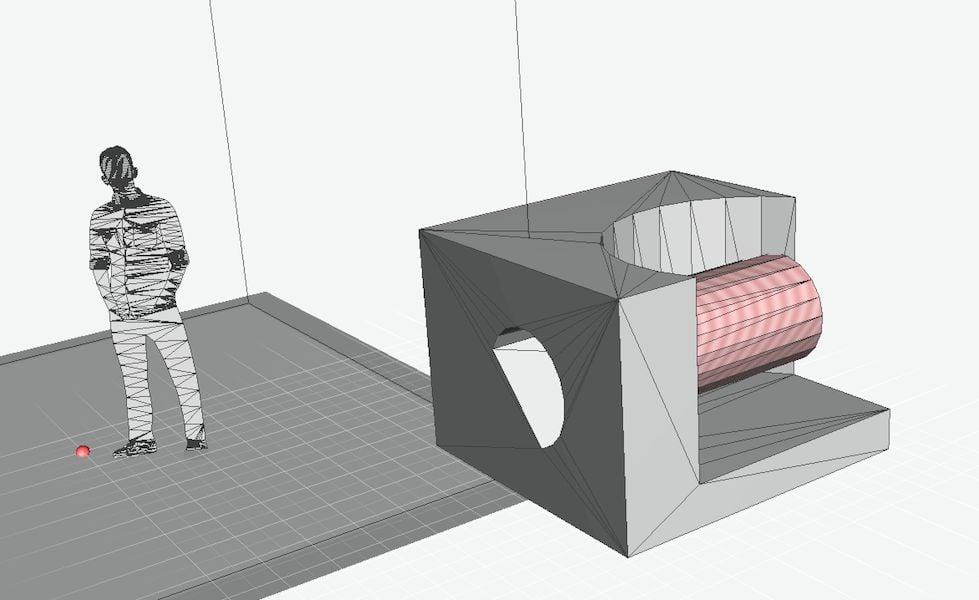
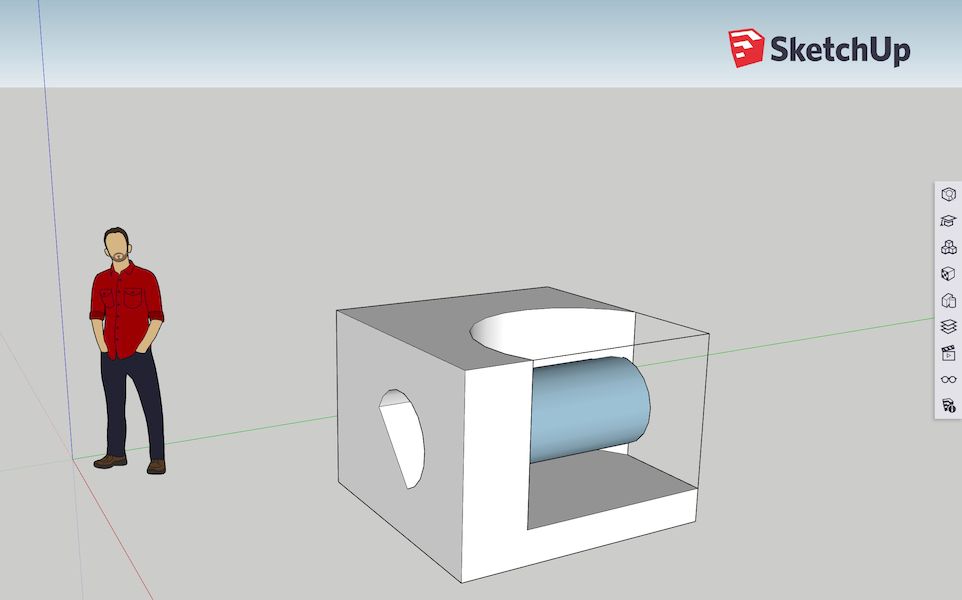
First off, we must say that SketchUp was not designed with 3D printing in mind; instead it was, like many 3D modeling tools, designed to produce visual 3D representations. While this output appears to your eye to be 3D, it really isn't and this shows when you try to 3D print. For example, 2D surfaces are often used in SketchUp. These have a thickness of, well, zero! They cannot be printed. That's one of several issues encountered when using SketchUp for 3D printing. 
 
We recently encountered a situation where someone wished to 3D print a SketchUp model they'd developed. The model *looked* ok, but in fact was completely unprintable and had to be totally re-engineered in a "real" 3D modeling tool. 
 
That all said, it is possible to use SketchUp to produce printable 3D models - if you carefully follow some rules when you develop your model. But what are the rules?
 
Shapeways points out a terrific post on MasterSketchUp by Marcus Ritland that explains what you need to do. Some of these apply to many 3D modeling programs, in case you're not using SketchUp. Among the rules are: 
 
  • Make it solid
  • Ensure walls have thickness
  • Scale up to permit detailed features
  • Smooth curves
  • Build as components
  • Use plugins to assist export and inspection
  • Consider material constraints
  • Reduce the solid size to conserve material
 
But you'd better read all the details at the link below.
 
Saturday
Apr282012

Google Sells SketchUp!

Big news! Google has sold off the hugely popular SketchUp 3D modeling tool to Trimble. Wait, who are Trimble, exactly? They're a "leading provider of advanced location-based solutions that maximize productivity and enhance profitability". In other words, they leverage GPS and other location tech to develop point products for quite a few different industries. 
 
What does this mean for SketchUp users? Perhaps not too much - the press release indicates the team and technology will persist, and that there will always be a free version for people to use. However, when products change companies there's often a reason behind it, so we must watch carefully over the next few months to see what develops. 
 
Is this a big change for 3D print operators? We think not so much, because SketchUp just isn't the best tool for modeling solid objects. It doesn't even output the STL format used by all 3D printers unless you install a special plug in. 
 
That said, SketchUp has often been the very first exposure to 3D modeling for a great many people. Some even try using it to develop simple 3D models, but nowadays there are plenty of better (and still free) software and service options. 
 
Sunday
Nov282010

Ponoko/Google Sketchup Contest Underway

Ponoko's promoting their recent launch of Personal Factory version 4 by joining forces with Google Sketchup on a new contest: The Ponoko 3D Printing Challenge. As far as we can tell, there are very few rules, other than:
 
produce a piece of instructional content that’s equal parts enlightening and entertaining. Each entry must be titled “How to use Google SketchUp for Ponoko 3D printing”
 
The digital entries will be judged and three awards are possible: all three winners will receive SketchUp Pro v8, a 12 month subscription to Personal Factory 4, but the first place will receive making coupons worth USD$537, whereas 2nd and 3rd place will receive USD$250 and USD$100 in coupons respectively.  
 
The contest closes on December 17th, so get started modelling right away, Sketchupers! 
 
Sunday
May232010

Poor Man's 3D Printing: The Design

So you want to start 3D printing, but you have no money? It is possible to do 3D printing without much cash, and for starters you'd need to prepare your 3D model for printing. But how to do this without cash? Two ways: simply use a 3D model from a well-stocked repository or design a model yourself.
 
The best repositories are Thingiverse, Google Sketchup 3D Warehouse, Ponoko or TurboSquid. You might have to pay for models from Ponoko and TurboSquid, but the others have many free models. 
 
If you're preparing the 3D model yourself, you'll need a software package, and a fairly sophisticated one at that. 3D modelling can be quite complex, and you'll likely need to take several tutorials to get your legs if you haven't done it before. While you could spend a lot of money, even exceeding USD$10,000, on commercial 3D packages, here are the two major popular 3D modelling software options that are available at no charge:   
 
  • Blender: a full-featured, multiplatform 3D modelling package, capable of doing much more than simply modelling 3D objects, as it includes rendering, animations, particles and much more. The downside to Blender is its interface, which some find very difficult to learn. 
  • Google Sketchup: a basic 3D modelling program specifically designed to be simple to use. Indeed one often finds K-9 students deeply engrossed in Sketchup building fantasy homes or castles. The downside to Sketchup is a relative lack of advanced features you'd find in Blender. Sketchup has many plugins available, one of which enables export of .STL files suitable for 3D printing.
 
If you're just starting out, one approach might be to learn the concepts with the simple Sketchup interface, then move on to the more complex Blender when you're ready. 
 
Another approach often used is to obtain a model from a repository and then edit it using a modelling program. Multiple objects can also be combined into more complex items. 
 
Having completed your design, we'll next move on to printing on the cheap.  
Tuesday
Apr132010

New Google Sketchup 3D Plugin from i.materialise

There's already a few plugins for Google's popular Sketchup 3D modelling program that permit export to formats suitable for 3D printing, but we learned that i.materialise has now released their own version. 
 
The plugin is easily installed into Sketchup by using the instructions linked below. In the image above you can see how it appears - a simple link to a wizard that sets up your model for 3D printing at i.materialise's service. You can view examples of actual Sketchup printed models here
 
We think this is a great addition to Sketchup, as it provides an extremely easy to use way to get 3D models printed. In our mind, anything that lowers the barriers to 3D printing is good. There are a great many Sketchup users and an even vaster library of models. This plugin may cause a lot more 3D printing to take place. Note: the plugin is Windows only. 
 
This particular plugin drives printing to their service, obviously, so if you're intention is to use a different service, then you should use another plugin, such as CADSpan's. You could also consider using QuickArc's 3D viewing software, which can read Sketchup files and convert them to .STL. 
 
Via i.materialise (Hat tip to Martijn)
Thursday
Oct232008

Print Your Sketchup Objects


Google Sketchup, by far the most popular 3D modeling tool in the known universe, now has a great way to send your Sketchup model to a 3D printer. Simply install the new plugin from CADspan and you'll be able to generate solid .STL files suitable for submission to most 3D print services and printers.

The plugin provides basic 3D features only, and the resulting .STL file is completely solid. This might be ok for some applications, but probably there will be a lot of wasted print media in thick objects.

The plugin permits you to pull models from Google's very extensive 3d warehouse and prep it for 3D printing. Basically, this means "water proofing" the model so that no interior-facing surfaces are visible. In other words, you have to make the model completely water-tight so that it can become "solid". The plugin uses easy visual coloring effects to help you through this potentially tedious process.

Another interesting feature we noticed was that you can not only export your model as .STL, but you can also import .STL as well.

Via Google Sketchup Blog and CADspan

Tuesday
Apr222008

3D Printing from Google Sketchup


QuickArc has just announced that their 3D model viewer, QuickArc 3D, now can read and convert Google Sketchup 3D files into printable 3D format without any fuss. 
This development enables the release and potential printing of tens of thousands of 3D models previously in 3D jail within Google's vast library. 
Free download (registration required) available at QuickARC. 


Tuesday
Mar042008

OoeyGui Continues

We've written about Lou Amadio's garage-based "Fabr" project before, in which he's building his own 3D printer - including self-designed portions of the machine itself. He's now released code and Sketchups for the 3D printer, the controller board and the decomposer plugin - which apparently has run across some difficulties with Sketchup.

An upcoming post on Fabbaloo will discuss some of the software tools used to prepare 3D models.

Via OoeyGui.com